
Why send bills on WhatsApp?
Your customers already live on WhatsApp. A bill that lands there is seen within minutes, is easy to find later, and can carry a UPI QR so the customer pays without asking for your account details. Paper bills get lost, and sending each PDF by hand from your phone takes time you don't have at a busy counter.
The problem has never been whether to send bills on WhatsApp, but how to do it for every single bill without extra work. That's exactly what Ping does.
 Tally / Marg / BusyYou save the bill
 PingReads bill, adds QR
What you need
- Your billing PC with Tally Prime / ERP 9, Marg, Busy, RetailGraph, SWIL, Isix, DUA or similar software.
- Your WhatsApp business number on a phone (the one your customers know).
- Customer mobile numbers in your billing software (most shops already save them on the bill).
- Internet on the billing PC.
Ping runs on Windows and works even on older PCs: it has a light mode for low-memory computers and updates itself automatically.
Set up Ping in 4 steps
Linking WhatsApp
Open Ping, click Link WhatsApp and scan the QR with your phone (WhatsApp → Linked devices → Link a device). If scanning is difficult, choose phone-number code instead and type the 8-character code on your phone. Customers will see your shop's name, because the bills come from your own number.
Making the message yours
Ping reads the bill text from your software, such as the customer name, bill number and amount, and puts it into your message. A typical message looks like this:
Any UPI app
See Ping on your own bills
Book a free demo. Our team installs Ping on your billing PC and links your WhatsApp.
Your day after setup
This is the best part: nothing changes. Make the bill in your software and save or print it as always. Within seconds Ping:
- picks up the new bill and finds the customer's mobile number and amount,
- creates the message from your template and attaches the PDF,
- adds a UPI QR for the exact bill amount (if you turned it on),
- sends it from your WhatsApp and records it on the Ping dashboard as Delivered.
| Mobile | Bill | Status |
|---|---|---|
| 98xxxxxx46 | INV-1023 · ₹12,450 | Delivered ✓✓ |
| 99xxxxxx12 | INV-1022 · ₹2,180 | Delivered ✓✓ |
| 97xxxxxx08 | INV-1021 · ₹640 | Delivered ✓✓ |
| 90xxxxxx31 | INV-1020 · ₹1,120 | Not on WhatsApp |
Tips for the best results
- Always save the customer's mobile number on the bill. No number, no WhatsApp.
- Turn on the UPI QR. Customers pay faster when they don't have to ask "how do I pay?".
- Keep anti-ban protection on (the Balanced mode suits most shops). See our guide on sending safely.
- Add your logo and offers with invoice branding. Your bill becomes an advertisement.
Want a copy of every bill? Add the owner's or accountant's number under Additional mobiles and Ping sends them a copy too.
That's it. Set up once, and every bill from now on reaches your customer's WhatsApp on its own.
Ready to stop sending bills by hand?
Our team sets Ping up on your billing PC and shows it on your own bills.
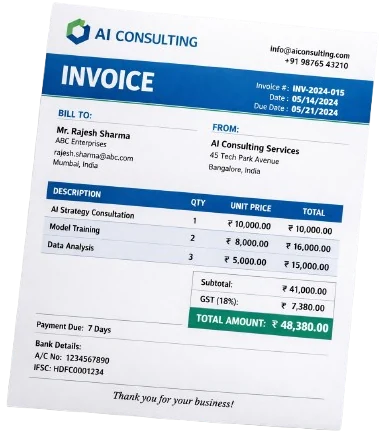 Before
 After Ping